01 · Getting started3 min read
Getting started
Scenivia turns what you know about your product into a motion design film you can still edit shot by shot. Your first video takes one afternoon at most, and the home page opens on the only question that matters: what are you making?
The three ways in#
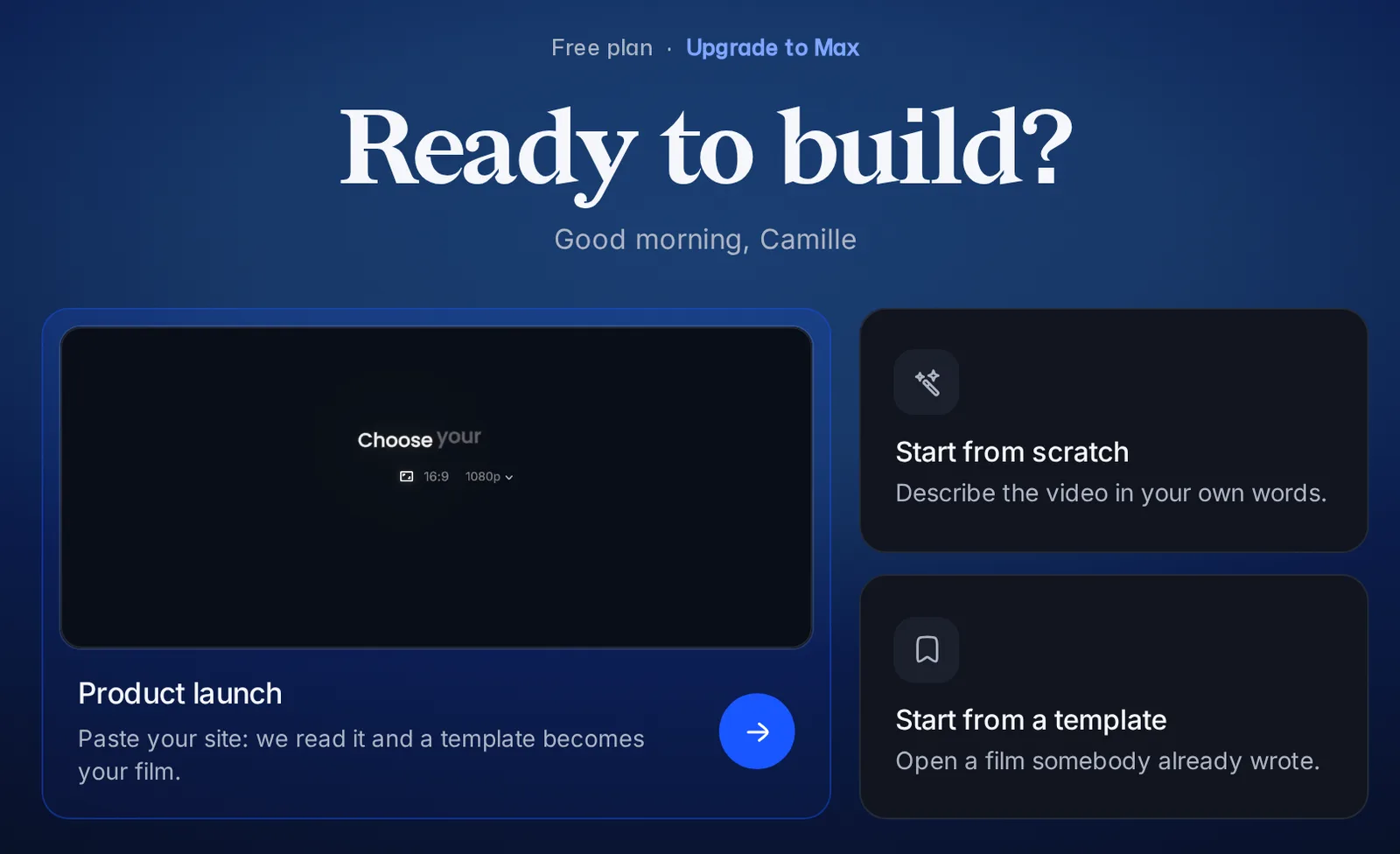
The home page offers three starts, and they are not three versions of the same thing. Pick the one that matches what you already have.
- Product launch
- You have a product and a website, and no script. Paste your site: Via, the assistant, reads it and shows you the brand and the story it found there. You check them, then pick a template or let Via pick the one that fits, and it becomes your film.
- Start from scratch
- You already know what the video should show. Describe it in the box: Via asks only what it still needs, then makes it from a template. Above the box, the Website, Template and Brand chips add what you already have, and they combine.
- Start from a template
- Someone already wrote a film of this shape. Open it, replace the words and the pictures, and you are done.
Your first video, end to end#
Whichever start you pick, the shape of the work is the same: a brief, a template made into your film, a board where you correct what the assistant got wrong, and an export.
- Say what the video is about, either by answering the guided questions or by describing it in your own words.
- Check the brand Via read, add your screenshots if you have them, then choose a template or let Via pick the one that fits.
- Via makes the film from that template, in your brand and with your words, and places it on the timeline.
- Correct one shot at a time, right on the board: double-click a text to rewrite it, drag a picture to move it, then the colours and how long it stays on screen.
- Export when it reads right. The file downloads when it is ready, and stays in Exports.
What comes out#
A short film, on purpose. A launch video that runs longer than a minute is a film nobody finishes, and a storyboard that grows without limit is one nobody edits.
- Length
- The template sets it, and it says so before the film is made. On the timeline you can lengthen or shorten it, up to 2 minutes.
- Shape
- Wide 16:9, vertical 9:16, square 1:1 or 4:5. You choose on the composer, and you can change it later in the film settings.
- Definition
- 720p or 1080p on every account. 4K comes with the Pro and Max plans.
- Your own screenshots
- A shot built on a screenshot shows the picture you imported, not a redrawing of it. A shot without one is an animated visual drawn from your description.