Exporting your film
Export is the one step that costs credits, and the one step you cannot undo by pressing Ctrl+Z, so the editor asks before it spends. Everything before it, including writing and rewriting the film as many times as you like, is free.
Before you press it#
Watch the film once from the beginning. The three things worth a second look are the first shot, which decides whether anyone watches the rest, the last one, which is the only one that asks for anything, and any shot whose words you changed after the fact.
The export window#
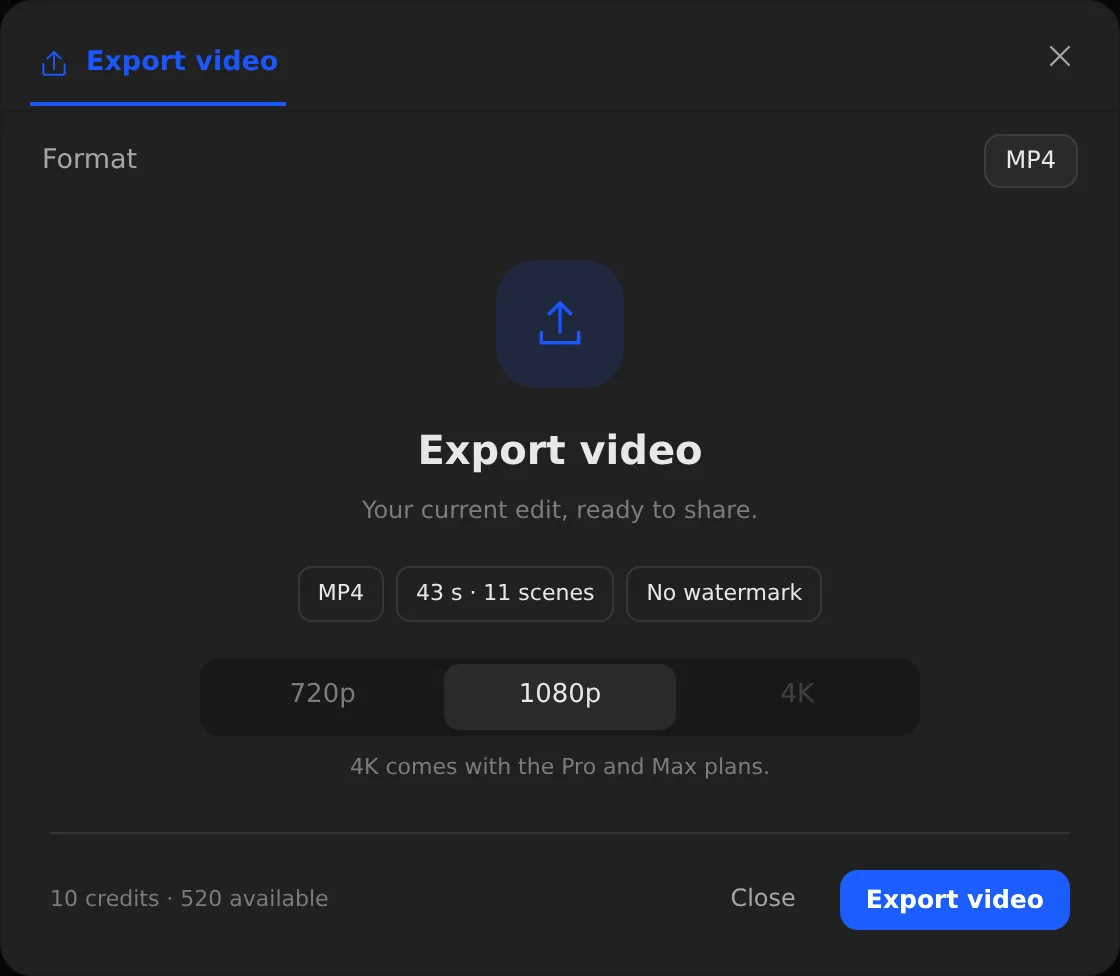
Export, at the top of the board, opens a window that says what you are about to get before anything is spent.
- Press Export at the top of the board.
- Read the summary: the format, the length and number of shots, and whether the file carries a watermark.
- Choose the definition: 720p, 1080p or 4K, as far as your plan goes.
- Check the cost and your balance at the foot of the window, then press Export video.
What you get#
An MP4 of the film as you approved it, in its format and at the definition you chose. You can close the window and keep working while it renders; the file downloads as soon as it is ready.
- The file
- MP4, in 16:9, 9:16, 1:1 or 4:5 as the film was made.
- The cost
- 10 credits per export. A failed export is refunded.
- Definition
- 720p and 1080p on every account. 4K comes with the Pro and Max plans. A lighter file than your plan allows is always a choice.
- Watermark
- An account that has never paid exports with one. A plan, or a credit pack you bought, removes it.
After the export#
Every export you have ever run is listed in Exports, with its status. Download fetches a finished file again without paying for it twice, and a failed render can be started again from its row.
An export in progress survives a reload: the editor finds it again and goes on showing its progress. While one film is exporting, a second export of the same film is not started.
My videos lists your projects, drafts and finished films alike, to open one again and keep working.