Editing your video
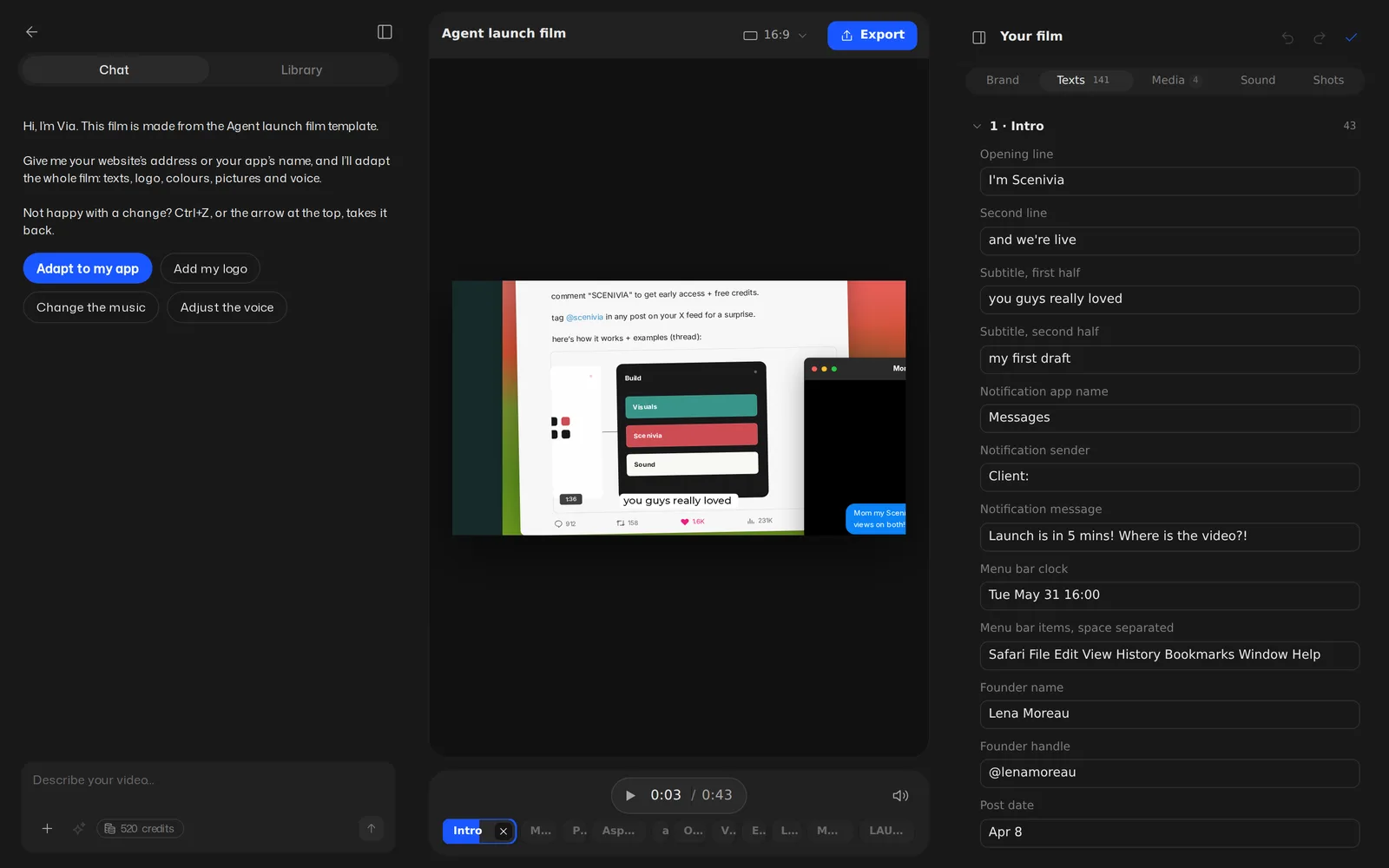
The editor is three columns: the conversation with Via on the left, the film in the middle, and the panel that holds everything the film is made of on the right. Nothing you do here regenerates the film, so a wrong line costs one correction rather than a whole reroll.
On this page
The three columns#
The left column holds Chat, the conversation with Via, and Library. Ask Via for a change in your own words, a line, how long a shot lasts, a background or the music, and it makes it on the film. The middle is the board, with the format, Export, the transport and the timeline of the shots.
The right is Your film, the panel of everything the film is made of, in five tabs: Brand, Texts, Media, Sound and Shots. It folds away to give the board more room, and reopens from the board’s toolbar.
Editing right on the board#
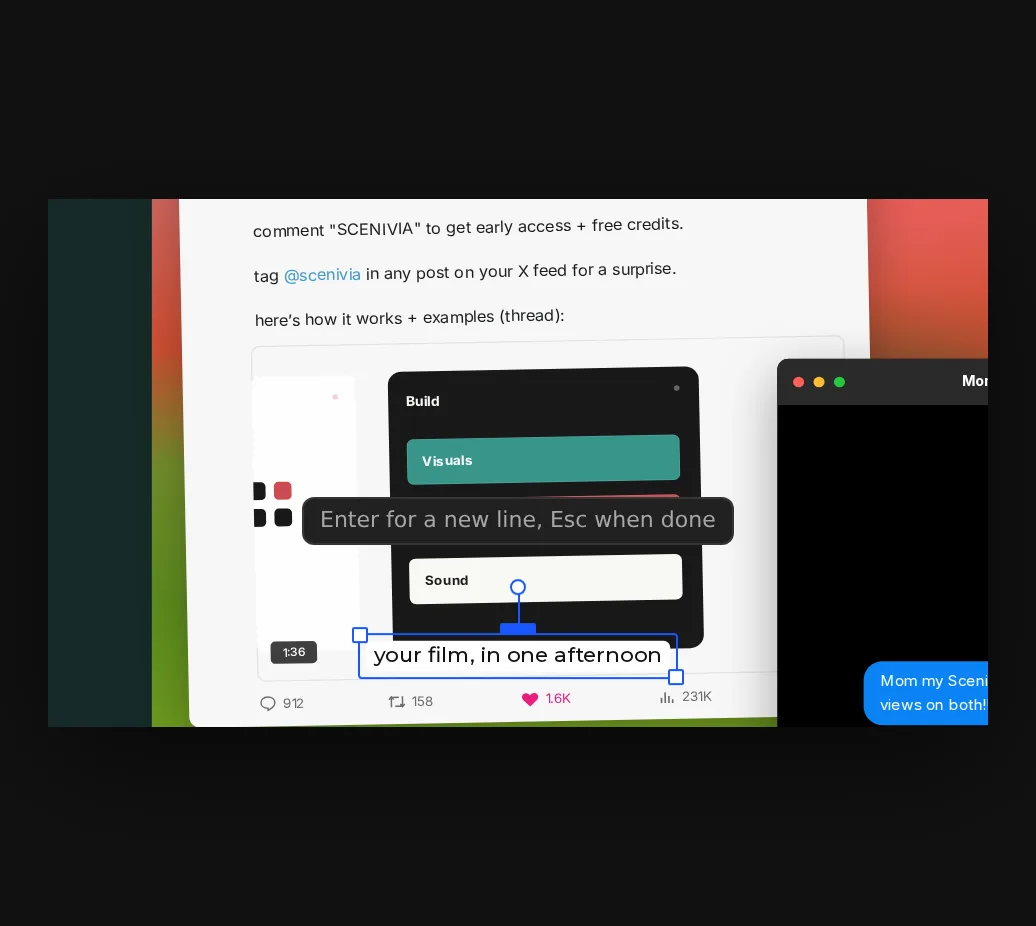
The board is not only a preview. Texts and pictures are edited where you see them, in the films Via writes and in the templates alike.
Click a text and a small bar opens over it: its size, its colour, Edit text, a reset to the template’s own, and a button to hide it.
- Select the shot on the timeline, or click the element on the board.
- Double-click a text to rewrite it (Enter or F2 work too). Enter starts a new line.
- Finish with Escape, Ctrl+Enter or a click outside the text.
- Drag a text or a picture to move it, drag a corner to resize it, drag the round handle to rotate it. Double-click a picture to crop it.
- Changed your mind? Ctrl+Z undoes, Ctrl+Shift+Z redoes.
The Your film panel#
Each tab holds one kind of thing for the whole film, so a correction is made once rather than shot by shot. Change a field and the board answers immediately.
A template’s cuts and transitions are part of the motion it was written with, and they stay as written.
- Brand
- The name, the logo, the four colours (background, text, accent and panels) and the typeface. Each shot keeps its light or dark mood, and your colours are adjusted there to stay readable.
- Texts
- Every line of the film, grouped by shot, each with the name of its place: the opening line, a notification, a founder’s name.
- Media
- The picture places of each shot, to fill with your screenshots and clips.
- Sound
- The music, the template’s own or another, and the narrator when the template has one, each with its volume.
- Shots
- The shots in order. Adjust this shot opens its position, scale and rotation, its own colours and its background; the cross removes it.
Saving#
Every change is saved a moment after you make it, with nothing to press. Reload the page or come back tomorrow: the project opens on the film as you left it.
If a save fails, a banner says so and keeps your changes in the tab: Retry saving tries again, and the second button keeps a local copy before loading the saved version.
Editing together#
Several people can work in the same project at the same time. Everyone sees the others’ cursors on the board and their changes as they make them, and the shot somebody is editing says who.
Everyone’s edits combine. When two people change the same thing, the second edit waits instead of being lost, and Via keeps the edits made while it was writing.
Keyboard shortcuts#
The ones every editor has, and they mean here what they mean everywhere else. Press ? in the editor for the full list.
- Undo and redo
- Ctrl+Z, then Ctrl+Shift+Z or Ctrl+Y. Cmd on a Mac.
- Edit a text
- Double-click, Enter or F2. Enter for a new line, Escape to finish.
- Nudge
- Arrow keys, with Shift for a bigger step.
- Save
- Ctrl+S. Your work is saved as you go, so this is a reassurance rather than a duty.
- Delete the selection
- Delete or Backspace.
- Play and pause
- Space. Home and End jump to the start and the end.